

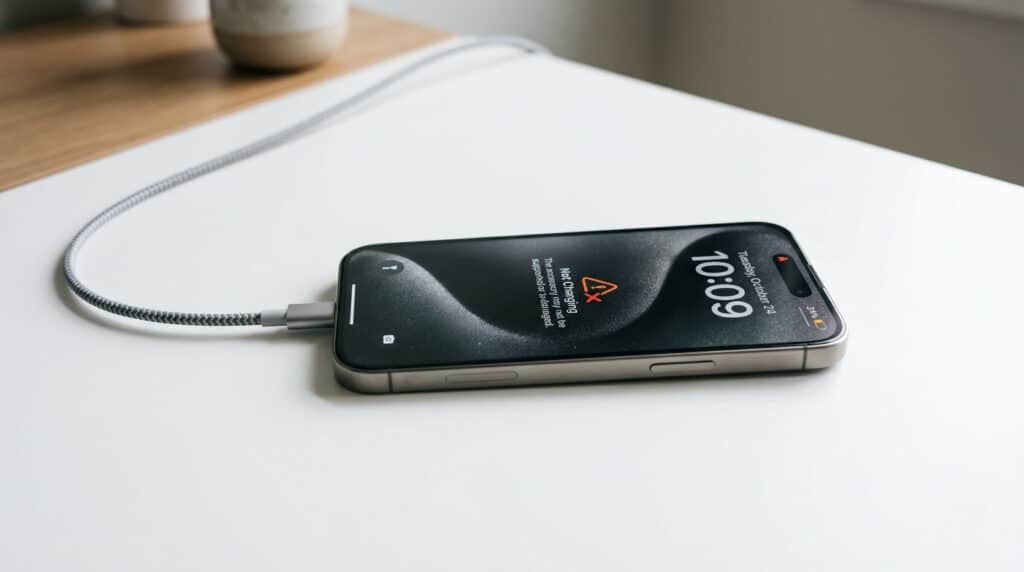
You plug your iPhone into the charger, set it down, and come back an hour later — only to find the battery hasn’t moved. No charging icon. No lightning bolt. Nothing.
If your iPhone is not charging when plugged in, you’re not alone. It’s one of the most searched iPhone problems, and it has more than one cause. The good news: most cases are resolved in under five minutes without tools, without visiting Apple, and without spending money.
This guide covers every real reason your iPhone won’t charge — from a clogged port to a misunderstood iOS setting — and gives you a clear fix for each one, in order of what’s most likely.
Quick Answer: Why Is My iPhone Not Charging When Plugged In?
An iPhone not charging when plugged in is most often caused by one of these: a clogged charging port, a damaged or uncertified cable, a temporary iOS software glitch, or Apple’s built-in charging limit pausing at 80%. In most cases, cleaning the port, swapping the cable, or doing a force restart resolves the problem within minutes.
Article Summary
If your iPhone is not charging when plugged in, the issue is usually caused by a clogged charging port, a damaged or non-certified cable, a faulty power source, software glitches, overheating, battery charging settings, excessive background activity, or battery degradation. The article explains how to identify the exact cause and provides a step-by-step troubleshooting process, starting with the simplest and most effective fixes.
Users should first confirm that the iPhone is actually failing to charge and not simply pausing at 80% due to Apple’s Optimized Battery Charging or Charge Limit features. The guide then recommends cleaning the charging port, testing a different cable and adapter, trying another power source, force restarting the device, checking charging settings, allowing the phone to cool down, updating iOS, disabling unnecessary background activity, and testing wireless charging. Battery Health should also be checked, as a degraded battery may require replacement.
The article highlights common mistakes such as using cheap, uncertified cables, cleaning the charging port with metal objects, charging a wet device, and misinterpreting normal charging behaviors as hardware failures. It also explains when professional repair is necessary, including cases involving physical port damage, water exposure, severe battery degradation, or persistent charging failures despite troubleshooting.
Overall, most iPhone charging problems can be resolved quickly without professional assistance, with dirty charging ports, faulty cables, and misunderstood charging settings being the most common causes. Following the troubleshooting steps in order helps users identify and fix the issue efficiently while preventing future charging problems through proper device maintenance and charging habits.
First: Confirm Your iPhone Is Actually Not Charging
Before troubleshooting hardware or software, make sure the problem is what it appears to be. Several normal iPhone behaviors can look like a charging failure.
Check these first:
- No lightning bolt on screen? That’s the clearest sign something is wrong.
- Dead iPhone with no response? A completely drained battery may take 10–15 minutes before any sign appears on the screen. Look for a faint vibration, a flicker of the Apple logo, or a charging chime.
- Stuck at 80%? This is almost always Apple’s Optimized Battery Charging feature doing exactly what it’s designed to do — not a malfunction. More on this in Section 2.
- Shows charging icon, but the percentage is dropping? Your apps are drawing more power than the charger is delivering. This points to a low-wattage adapter or a power-hungry background process.
Taking 60 seconds to confirm the actual symptom will save you from troubleshooting the wrong thing.
The 8 Real Reasons Your iPhone Won’t Charge
Understanding the cause matters. Each fix below is paired with the cause it addresses. Work through them in order — they’re arranged from most to least common.
1. Dirty or Clogged Charging Port
This is the number one cause of iPhone charging failures, and it’s the one most people don’t check first.
Every time you carry your iPhone in a pocket, lint and debris get pushed into the charging port. Over weeks and months, this compacts against the metal contact pins — eventually blocking the cable from making a clean connection. The cable may feel like it’s inserted, but no power gets through.
A common sign: the cable feels loose, wobbles slightly, or doesn’t click in firmly. Charging may also work intermittently — starting and stopping as the cable shifts position.
The fix is simple, but needs to be done carefully. See Fix 1 below.
2. Damaged or Non-Certified Cable or Adapter
A faulty cable is the second most common cause. Cables bend, fray, and develop internal breaks that aren’t always visible from the outside. Non-certified third-party cables are a particular risk — they often lack the MFi chip Apple requires, which triggers the “Accessory Not Supported” error or causes silent charging failure with no alert at all.
One important note for iPhone 15, 16, and 17 users: these models use USB-C, not Lightning. If you recently upgraded and are using your old Lightning cable — even with an adapter — it will not charge the phone. This catches many users off guard.
3. Faulty Power Source
The outlet, USB port, or power bank you’re using may simply not be working or not delivering enough power.
Wall outlets can stop working. USB hubs may not provide adequate voltage. Computer USB 2.0 ports deliver significantly less power than USB 3.0 ports — which can cause very slow or no charging, especially for newer models.
This is easy to rule out: try a different outlet, or plug directly into the wall instead of through a hub.
4. iOS Software Glitch
iOS occasionally loses track of the charging state — particularly after a system crash, a background app issue, or a major iOS update. The phone may be plugged into a working charger with a working cable, but the software doesn’t register it.
This is more common than most people expect, and it’s one of the easiest fixes: a force restart clears the charging state without erasing any data.
5. Optimized Battery Charging or Charge Limit Pausing at 80%
If your iPhone is plugged in but stuck at 80%, it is not broken.
Apple’s Optimized Battery Charging feature intentionally pauses charging at 80% to reduce long-term battery stress. The iPhone learns your daily routine and holds at 80% until it predicts you’ll need a full charge. On iPhone 15 and later, a separate Charge Limit setting can also cap charging at 80% (or any percentage you set). Both are working as designed. Go to Settings → Battery → Battery Health & Charging to confirm which setting is active and adjust it if needed.
This is probably the most misunderstood “problem” in this list. Many people spend hours troubleshooting a charger that is working perfectly.
6. Overheating
iPhones automatically pause charging when internal temperature exceeds safe operating limits — typically above 95°F (35°C). This is a protection mechanism, not a fault.
Common triggers include: charging in direct sunlight, gaming or using navigation while charging, using a high-wattage adapter in a warm environment, or leaving the phone on a car dashboard.
You’ll often see an on-screen temperature warning. The fix is to let the device cool in a shaded, room-temperature environment before reconnecting the charger.
7. Background Apps Drawing More Power Than the Charger Delivers
If your iPhone shows the charging icon but the battery percentage is dropping or not rising, your apps are consuming more power than the charger provides.
This typically happens with low-wattage adapters (5W) paired with demanding tasks — navigation, streaming video, or games running in the background. The solution is to use a higher-wattage adapter, put the phone in Airplane Mode while charging, or disable Background App Refresh.
8. Degraded Battery Health
Older batteries lose their ability to hold and accept a charge efficiently. If your iPhone is several years old and charging has become unreliable across multiple cables and outlets, battery health is worth checking.
Go to Settings → Battery → Battery Health & Charging → Maximum Capacity.
If it’s below 80%, Apple considers the battery degraded and recommends service. This is a hardware issue — no software fix will resolve it.
How to Fix an iPhone That Won’t Charge — In Order
Work through these steps in sequence. The most common fixes are first. Stop when charging resumes.
| Step | Fix | Time | Tools Needed |
| 1 | Clean the charging port | 2–5 min | Flashlight, dry toothpick or soft brush |
| 2 | Try a different cable and adapter | 1 min | MFi-certified cable |
| 3 | Try a different power source | 1 min | Different outlet or USB port |
| 4 | Force restart the iPhone | 1 min | None |
| 5 | Check Optimized Charging / Charge Limit | 1 min | None |
| 6 | Let the device cool down | 15–30 min | None |
| 7 | Update iOS | 5–15 min | Wi-Fi + 20%+ battery |
| 8 | Disable Background App Refresh | 1 min | None |
| 9 | Try wireless charging (MagSafe or Qi) | 1 min | Wireless charger |
| 10 | Check Battery Health | 1 min | None |
Fix 1 — Clean the Charging Port
Power off your iPhone before you start.
Use a flashlight to look directly into the port. If you see grey or dark debris packed at the back, that’s the problem.
Use a dry toothpick or non-conductive plastic pick to gently loosen the compacted lint. Work carefully around the edges — do not poke straight into the center.
Important for iPhone 15, 16, and 17 users: the USB-C port has a fragile central tongue. Be especially gentle and avoid metal tools entirely. A soft anti-static brush works well here.
After loosening debris, use a can of compressed air to blow it clear — hold the can upright, use short bursts, and keep it a few inches away from the port.
Re-inspect with the flashlight. Repeat if needed. Once the port looks clear, reconnect the charger.
In practice, this single fix resolves a large share of cases — especially on phones that have been used for a year or more without any port maintenance.
Fix 2 — Swap the Cable and Adapter
Try a completely different cable. Ideally, use an Apple cable or one with MFi certification on the packaging.
Then swap the adapter (the wall plug). Test with a different one if you have access to one.
Use this logic to diagnose:
- Charges with a different cable → original cable is the problem
- Charges from a computer but not the wall → The adapter is the problem
- Charges from neither → move to Fix 3 or Fix 4
If you see “This Accessory May Not Be Supported” on screen, the cable is almost certainly the issue — either it’s damaged, or it lacks MFi certification.
Fix 3 — Try a Different Power Source
Test in a different wall outlet to rule out a dead socket.
If charging from a computer: use a USB 3.0 port, not USB 2.0, and make sure the computer is awake — not in sleep mode.
Avoid USB hubs when troubleshooting. Plug directly into the wall or computer port.
Fix 4 — Force Restart Your iPhone
A force restart clears the iOS charging state without erasing data. It’s different from a regular restart and more effective for software glitches.
iPhone 8, SE (2nd/3rd gen), X, 11, 12, 13, 14, 15, 16, 17:
- Press and quickly release Volume Up
- Press and quickly release Volume Down
- Press and hold the Side button until the Apple logo appears — this can take 10–15 seconds
iPhone 7 / 7 Plus: Press and hold Volume Down + Side button simultaneously until the Apple logo appears
iPhone 6s and earlier: Press and hold Home + Top (or Side) button simultaneously until the Apple logo appears
After the restart, plug in the charger and wait 30 seconds.
Fix 5 — Check Charging Optimization Settings
Go to Settings → Battery → Battery Health & Charging.
If Optimized Battery Charging is on and your routine has triggered the 80% hold, you’ll see a message on the lock screen when charging is expected to resume.
To temporarily override it: long-press the charging indicator on the lock screen and select “Charge Now.”
To disable it: toggle Optimized Battery Charging off.
For iPhone 15 and later, also check Charging in the same menu. If Charge Limit is set to 80%, that’s why charging stopped. Tap it to adjust the limit or set it to 100%.
Fix 6 — Let the Device Cool Down
If charging stopped after the phone got warm, don’t keep plugging and unplugging.
Remove the case — cases trap heat and slow the cooling process. Set the phone on a hard, flat surface in a room-temperature environment, away from direct sunlight. Give it 15–30 minutes.
Once it cools to a normal temperature, the charging circuit will resume automatically when you reconnect the charger.
Fix 7 — Update iOS
Go to Settings → General → Software Update.
Apple patches charging-related bugs in iOS point releases regularly. If the problem started after a recent update, a follow-up patch may already be available.
Keep the phone plugged in during the update if possible, and ensure at least 20% battery remains.
Fix 8 — Disable Background App Refresh
Go to Settings → General → Background App Refresh → Off.
This reduces the power drain during charging. Particularly useful if the phone charges normally when idle but struggles when apps are active in the background.
Fix 9 — Try Wireless Charging
Every iPhone from the iPhone 8 onward supports Qi wireless charging. iPhone 12 and later support MagSafe.
Place the iPhone directly on a Qi or MagSafe charger.
- If wireless charging works but wired doesn’t → the issue is with the Lightning or USB-C port (physical damage, debris, or pin corrosion)
- If neither works → the problem is more likely software or battery-related
This is a useful diagnostic step, not just an alternative charging method.
Fix 10 — Check Battery Health
Go to Settings → Battery → Battery Health & Charging → Maximum Capacity.
- Above 80%: Battery is still in acceptable condition — the charging problem is likely elsewhere
- Below 80%: Apple considers this degraded. The battery may struggle to accept a charge reliably, especially on faster charging protocols
- “Service Recommended” message: Apple is flagging the battery for replacement
Below 80%, no cable, port, or software fix will fully address the underlying issue.
Common Mistakes That Make iPhone Charging Problems Worse
| Mistake | Why It Happens | Consequence | Better Approach |
| Using a cheap, uncertified cable | Looks identical to real cables; lower price | Silent charging failure or port damage | Only use Apple or MFi-certified cables |
| Cleaning the port with a metal object | Seems like it should work | Permanently bends or snaps the USB-C center tongue | Use a dry toothpick or plastic pick only |
| Plugging in immediately after water exposure | Panic to check if the phone still works | Short-circuits charging components | Air dry completely for 30–60 minutes first |
| Treating the 80% stop as a hardware fault | The feature is not well-known | Wastes time troubleshooting a working phone | Check Settings → Battery first |
| Using a Lightning cable on iPhone 15, 16, or 17 | Old habit from the previous iPhone | Won’t charge at all — physically incompatible | Confirm your model, use the correct cable |
| Charging under direct sunlight | Convenient but hot | Triggers thermal protection, pauses charging | Charge in shade, remove case to dissipate heat |
| Jumping to a full DFU restore first | Seen as a “nuclear option” fix | Erases all data unnecessarily | Exhaust all cable, port, and restart fixes first |
When to Visit Apple (or an Authorized Repair Center)
Some charging problems require professional diagnosis. Book a Genius Bar appointment if:
- You’ve worked through all the steps above, and nothing helped
- The charging port has visible corrosion, burn marks, or bent pins
- The iPhone was submerged or heavily exposed to water and still won’t charge after drying
- The phone won’t power on at all after 30+ minutes on a known-good charger and cable
- Battery Health shows “Service Recommended” or 0% Maximum Capacity
- Charging works only in very specific positions, suggesting port damage
How to book: Use the Apple Support app or visit apple.com/support to schedule a Genius Bar appointment. If your device is under warranty or covered by AppleCare+, battery service and some hardware repairs may be included — check your coverage before paying out of pocket.
How to Prevent iPhone Charging Problems Going Forward
A few habits that reduce how often this happens:
- Check your port every few weeks with a flashlight — lint accumulates silently over months
- Use only Apple or MFi-certified cables and adapters — cheap cables are a false economy
- Don’t charge in extreme temperatures — below 32°F or above 95°F stresses the charging circuit
- Remove the case when charging in warm conditions — cases trap heat
- Keep iOS updated — Apple patches charging bugs in regular releases
- Store cables loosely coiled — tight bends at the connector damage internal wires over time
- Avoid draining to 0% regularly — deep discharge cycles add wear to the battery
FAQ
Why is my iPhone plugged in but showing no charging icon at all?
The most common reasons are a clogged charging port, a non-functional cable, or a dead wall outlet. Start by cleaning the port with a dry toothpick, trying a different Apple-certified cable, and testing a different outlet. If none of those work, do a force restart — iOS occasionally stops detecting the charger due to a software glitch.
Why does my iPhone stop charging at 80%?
This is Apple’s Optimized Battery Charging feature, introduced in iOS 13, working as designed. It pauses charging at 80% to reduce the time the battery spends at full voltage, which extends long-term battery life. On iPhone 15 and later, the Charge Limit setting can also cap charging at a custom percentage. Go to Settings → Battery → Battery Health & Charging to review and adjust these settings.
Can I charge my iPhone if the charging port is wet?
No. Connecting a charger to a wet port risks short-circuiting the charging components. Let the port air dry naturally for at least 30–60 minutes before plugging anything in. Do not use a hair dryer, oven, or compressed heat — these can damage internal components. If your iPhone 12 or later detects liquid, it will show a warning before allowing charging.
How do I know if my charging port is damaged or just dirty?
A dirty port typically makes the cable feel loose, wobble, or connect intermittently — and cleaning it with a dry toothpick usually resolves it. A damaged port often shows visible corrosion, discoloration, or bent pins, and the problem persists even after thorough cleaning with multiple known-good cables. If wireless charging works but wired doesn’t, port damage is the likely cause.
Is it safe to use a third-party charger with an iPhone?
Third-party chargers are safe only when they carry Apple’s MFi certification. Non-certified accessories can cause charging failure, port damage, or trigger the “This Accessory May Not Be Supported” error. Some non-certified cables also fail to charge at all while showing the charging icon — a frustrating and hard-to-diagnose symptom. Always check for the MFi label before purchasing a replacement cable.
What should I do if my iPhone won’t charge after getting wet?
Do not plug it in. Dry the port area gently with a soft cloth or cotton swab. Leave the iPhone in a dry, room-temperature environment for at least 30–60 minutes. Then try charging again. If the phone was submerged or heavily soaked and still won’t charge after thorough drying, book an Apple service appointment — liquid damage to internal charging components may require professional repair.
Conclusion
iPhone charging problems are almost always fixable, and they usually come down to one of three things: a dirty port, a bad cable, or a setting that’s working correctly but wasn’t explained clearly.
Three practical takeaways:
- Clean the port first. It’s the most common cause, takes two minutes, and costs nothing. Most people skip it.
- Check your charging settings before replacing anything. A phone stopping at 80% is almost certainly Optimized Battery Charging — not a defective charger.
- If fixes 1–9 don’t resolve it, the problem is hardware — a damaged port, a degraded battery, or internal damage from water exposure. At that point, a Genius Bar visit is the right next step, not another cable.
Work through the fixes in order. For most people, the answer is somewhere in the first four steps.
Getting Your iPhone Repaired in Ocala, FL?
If you’ve worked through every fix in this guide and your iPhone is still not charging when plugged in, the problem is most likely a damaged port, a degraded battery, or internal damage that needs hands-on repair — and that’s exactly what we handle.
Phone Fashion serves iPhone users across Ocala with professional charging port cleaning, battery replacement, and full diagnostic services. No appointment is needed for most repairs, and most charging issues are resolved the same day.
Visit Us in Ocala
Phone Fashion — Paddock Market
3100 SW College Rd, Ocala, FL 34474
Suite 5 & 6
📞 +1 (352) 300-9764
📧 Phonefashionpaddockmarket@gmail.com
Whether it’s a clogged charging port, a worn-out battery, or something more serious, bring your iPhone in, and we’ll tell you exactly what’s wrong — no guesswork, no unnecessary upsells.
Serving iPhone users in Ocala, Marion County, and surrounding areas.