

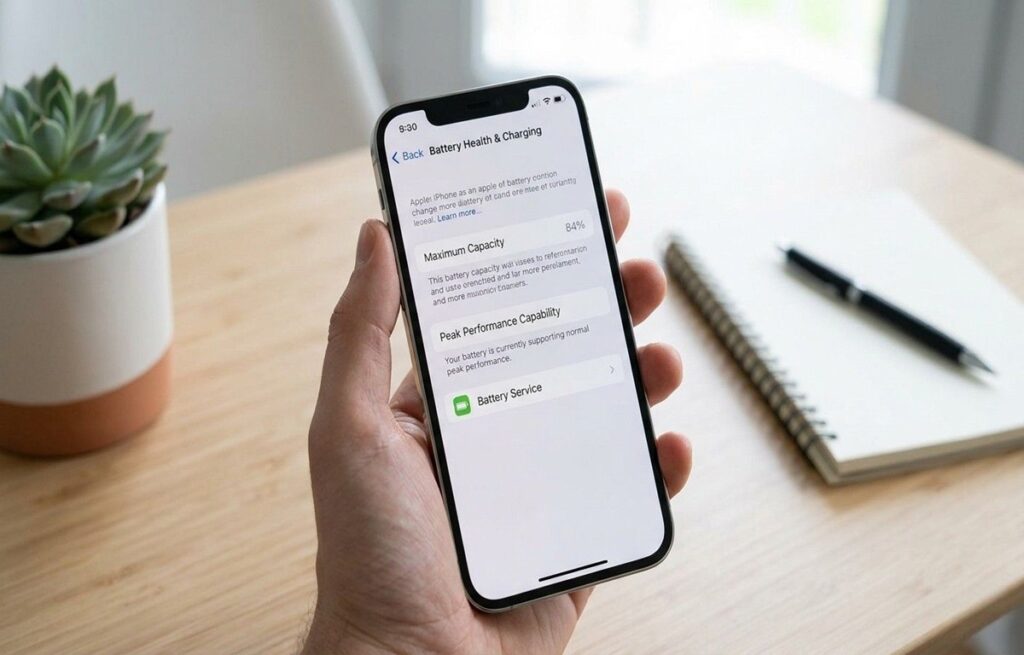
iPhone Battery Health helps determine whether poor battery life is caused by normal battery aging or by apps, settings, and software issues.
Battery Health shows how much charge your battery can still hold compared to when it was new, while battery percentage only shows how much charge is left right now.
In this guide, you’ll learn how to check iPhone Battery Health, what Maximum Capacity actually means, when a battery replacement is necessary, and how to improve battery life without replacing the battery.
Quick Overview
- Battery Health measures battery aging
- Battery percentage shows remaining charge
- Below 80% usually means noticeable degradation
- Fast battery drain is not always caused by a bad battery
What Is iPhone Battery Health?
iPhone Battery Health is a built-in iOS feature that measures your battery’s condition over time.
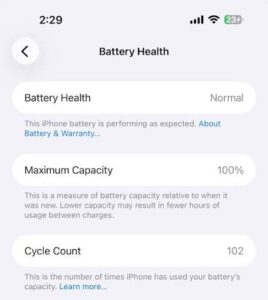
It mainly shows two things:
- Maximum Capacity — how much charge the battery can still hold compared to when it was new
- Peak Performance Capability — whether the battery can still deliver stable power during demanding tasks
As lithium-ion batteries age, Maximum Capacity gradually decreases. Lower capacity usually means shorter runtime between charges.
In repair shops, Battery Health is often the first thing technicians check when diagnosing battery drain, overheating, or unexpected shutdowns.
How to Check iPhone Battery Health
Checking your iPhone’s battery health takes about 15 seconds. Apple builds this directly into iOS, so there’s no app to download. On the latest iOS versions (iOS 16 and later), the menu path is slightly different from older versions, but both lead to the same data.
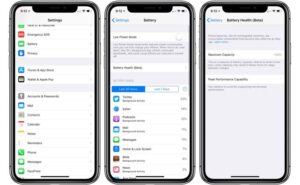
On iOS 16.4 and newer (iPhone XS and later):
- Open Settings
- Tap Battery
- Tap Battery Health & Charging (or simply Battery Health on some versions)
- Read Maximum Capacity and Peak Performance Capability
On iOS 11.3 through iOS 15:
- Open Settings
- Tap Battery
- Tap Battery Health
- Read the same two values
Quick Tip:
If you don’t see “Battery Health” in Settings, your iPhone may be running an older iOS version or may have a battery that the system cannot verify.
Open Settings → Battery → Battery Health (or Battery Health & Charging on newer iOS).
The screen shows Maximum Capacity as a percentage and Peak Performance Capability as a status line. No apps or tools are required.
A common mistake people make is assuming Battery Health lives inside the Battery widget on the home screen. It doesn’t. That widget only shows charge level. Battery Health is buried one layer deeper in Settings, which is why so many users never see it until something goes wrong.
Why Can’t I See Battery Health on My iPhone?
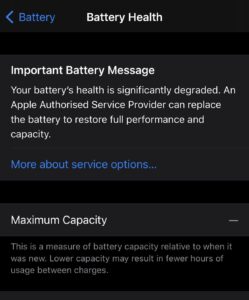
If the Battery Health option doesn’t appear in Settings, there are several possible reasons.
- Your iPhone is running an older iOS version that doesn’t support Battery Health.
- The battery has been replaced with a part that iOS can’t verify.
- Your device is an older model that doesn’t support Battery Health.
- A software issue may be preventing the menu from displaying correctly.
Try updating to the latest version of iOS and restarting your iPhone. If the option is still unavailable, a professional diagnostic can determine your battery’s condition.
Understanding Maximum Capacity and Peak Performance
Maximum Capacity and Peak Performance measure two different parts of battery condition.
Maximum Capacity shows how much charge your battery can still hold compared to when it was new. Peak Performance shows whether the battery can still deliver stable power during demanding tasks like gaming, video recording, or multitasking.

Why does Maximum Capacity decrease? Each full charge cycle counts as one cycle. Lithium-ion batteries typically handle 500 complete cycles before dropping below 80% capacity, according to Apple’s official battery documentation. Heat, fast charging, and deep discharges accelerate this drop.
Peak Performance Capability has four possible messages, per Apple’s iPhone Battery and Performance support page:
- Normal — battery is performing as expected
- Unknown — iOS can’t determine the battery’s state (often after a third-party replacement)
- Performance management applied — the phone has throttled itself to prevent shutdowns
- Battery service recommended — the battery is significantly degraded and should be replaced
When your phone displays “Important Battery Message” or the throttling warning, the system has detected an unexpected shutdown risk and is protecting the hardware by limiting performance. This is the clearest signal that replacement is overdue.
| Battery Health | Meaning | Action |
| 100% | New battery | No action |
| 90–99% | Excellent | Keep using |
| 85–89% | Normal aging | Monitor |
| 80–84% | Reduced capacity | Consider replacement |
| Below 80% | Poor | Replace battery |
In simple terms:
- Maximum Capacity affects battery runtime
- Peak Performance affects stability
- A battery can still work normally even below 90%
Most users don’t notice battery degradation gradually. They usually notice it once the phone starts shutting down randomly, overheating, or slowing down during heavy use.
A common mistake is treating the Peak Performance message as a software glitch. It isn’t. It’s a hardware warning, and ignoring it usually leads to sudden shutdowns in cold weather or during intensive apps.
Can Apple Slow Down Your iPhone Because of Battery Health?
Yes. iPhones can reduce performance when the battery becomes heavily degraded.
Apple introduced performance management to prevent unexpected shutdowns caused by aging batteries that can no longer deliver stable peak power.
This became widely discussed after Apple’s 2017 “Batterygate” controversy, which eventually led Apple to introduce Battery Health and Performance Management controls directly into iOS.
This usually happens after significant battery wear or after the device experiences repeated unexpected shutdowns.
In most cases, replacing the battery restores normal performance.
When Should You Replace Your iPhone Battery?
According to Apple, replacing the battery is recommended when Maximum Capacity drops below 80% or when iOS displays a Battery Service warning. In practice, you should also replace it if you notice unexpected shutdowns, hot operation, or runtime less than half of when the phone was new, even if the percentage hasn’t hit 80% yet.
Real-world usage often tells a clearer story than the percentage alone.

Replace your battery if:
- Maximum Capacity is below 80%
- You see the “Battery Service” or “Important Battery Message” warning
- Your phone shuts down unexpectedly even at 30–50% charge
- The phone gets noticeably hot during light use
- Runtime has dropped to less than half of what it was when new
- The screen or back panel is bulging (this is a safety issue, replace immediately)
Wait and monitor if:
- Maximum Capacity is above 85%
- Peak Performance shows “Normal”
- You get through your typical day without charging
- No unexpected shutdowns
What matters most here is matching the data to your actual experience. A technician can read the same numbers you see in Settings, so this is a decision you can make confidently on your own.
For example, an iPhone with 82% Maximum Capacity but reliable all-day battery life may not need immediate replacement. On the other hand, another iPhone with 87% Battery Health but frequent shutdowns or performance slowdowns could already benefit from a new battery. Looking at both the numbers and your real-world experience gives a more accurate picture of your battery’s condition.
Why Your Battery Drains Even with Good Battery Health
Battery Health and battery life are two different problems. A battery can show 95% Maximum Capacity and still drain in four hours. This typically happens when software, settings, or environmental factors are working against you, not the battery itself.
Battery Health vs. Battery Life
| Battery Health | Battery Life |
| Measures the battery’s physical condition | Measures how long your iPhone lasts on a charge |
| Changes gradually over months or years | Can change from day to day |
| Based on Maximum Capacity | Influenced by apps, settings, screen brightness, and network usage |
| Reflects permanent battery aging | Can often be improved without replacing the battery |
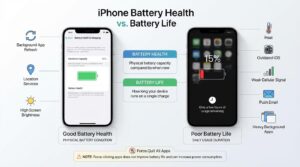
Battery Health tells you how much capacity your battery has left, while Battery Life reflects how long your iPhone lasts during daily use. A healthy battery can still have poor battery life if software or settings are consuming excessive power.
Common culprits:
- Background App Refresh — apps updating content even when you’re not using them
- Location Services — apps constantly polling GPS, especially maps, ride-share, and social apps
- Screen brightness — the display is the single biggest drain on any iPhone
- Heat — leaving the phone in a hot car or in direct sun forces the battery to work harder
- Old iOS — outdated software often has battery optimization bugs that newer versions fix
- Weak cellular signal — the radio boosts power when searching for signal
- Push email — checking mail every minute keeps the radio active
This is where many users get confused. A phone with strong Battery Health can still die quickly because of aggressive apps, poor signal strength, or high screen brightness.
One mistake people often make is assuming that closing all apps saves battery. Apple’s own documentation states that force-quitting apps usually makes battery life worse, because the apps then have to fully reload when you reopen them, using more energy.
Tips to Improve iPhone Battery Health
You can’t reverse battery aging, but you can slow it down significantly. The most important factor is heat, followed by charge habits, followed by software.
Habits that actually help:
- Avoid heat above 95°F (35°C) — this is the single biggest accelerator of degradation
- Use Optimized Battery Charging (Settings → Battery → Battery Health & Charging) — Apple-designed feature that pauses charging at 80% until you need it
- Use Low Power Mode when you know you’ll be away from a charger
- Keep iOS updated — Apple frequently fixes battery-drain bugs in point releases
- Use certified chargers — MFi-certified cables and adapters protect against voltage irregularities
- Remove thick cases while charging — cases trap heat generated during charging
Myths that don’t help and sometimes hurt:
- Never charge overnight” — iPhones with Optimized Charging are designed for overnight charging. Leaving it plugged in at 100% is no longer harmful.
- Always charge to 100%” — actually counterproductive; staying between 20% and 80% is gentler on the cells
- Always drain to 0%” — deep discharges stress lithium-ion chemistry. Apple explicitly recommends charging whenever convenient.
- Fast charging ruins batteries” — modern iPhones regulate voltage. Apple’s 20W adapter is safe; the battery simply gets warmer, which is the actual concern.
To extend iPhone battery health, avoid exposing the phone to heat, enable Optimized Battery Charging, use Low Power Mode when needed, and keep iOS updated. Use MFi-certified chargers and avoid letting the battery sit at 0% for extended periods. Charging to 100% occasionally is fine; staying between 20% and 80% long-term is gentler on the cells.
Most battery longevity comes down to controlling heat and avoiding unnecessary battery stress rather than following internet charging myths.
Battery Replacement Options
You have four main options for replacing an iPhone battery, and they differ meaningfully in cost, warranty coverage, and parts quality.
| Option | Cost (typical) | Warranty | Parts Quality | Risk |
| Apple | $89–$99 | 90 days or AppleCare | Genuine | Lowest |
| Authorized Service Provider | $89–$99 | Same as Apple | Genuine | Low |
| Professional Repair Shop | $60–$120 | Varies (30 days–1 year) | OEM or premium aftermarket | Low to medium |
| DIY | $25–$50 (parts) | None on labor | Varies widely | High |
Apple is the safest choice if your iPhone is under warranty or covered by AppleCare+. Pricing for out-of-warranty service is set by Apple and visible on their Battery Service pricing page. Authorized Service Providers use the same genuine parts and offer the same warranty, often with faster turnaround.
Professional repair shops vary widely. Good shops use OEM-grade or genuine batteries and back their work with a written warranty. Bad shops use low-grade cells that lose capacity within months. The practical difference is in the testing process: a quality shop load-tests every battery before installation.
DIY is possible but carries real risk. Modern iPhones use strong adhesives and require specific tools. Mistakes during opening can crack the display or damage the Face ID sensor, which adds hundreds of dollars in additional repairs.
In many repair cases, batteries with similar Battery Health percentages behave very differently depending on heat exposure, charging habits, and overall device usage.
Common Battery Health Myths
Five myths show up over and over in forums and comment sections. None of them hold up against what Apple and battery chemistry actually say.
- “My battery health can go back to 100%.” It cannot. Battery degradation is a chemical process that does not reverse. Recalibration tricks sometimes make the percentage move slightly, but the underlying capacity doesn’t recover.
- “Closing apps saves battery.” According to Apple’s own battery performance documentation, force-quitting apps usually worsens battery life. Apps in the background consume minimal resources; reloading them costs more.
- “Fast charging ruins batteries.” Modern iPhones regulate charging voltage and current carefully. Heat is the real risk, not the charging speed itself.
- “Charging overnight always damages batteries.” This was true for older battery chemistries. Today’s iPhones include Optimized Charging that holds the battery at 80% overnight and finishes charging before you wake up. Apple designed the iPhone to be charged overnight.
- “My battery is bad because it drops from 100% quickly.” Every iPhone drops from 100% to 90% faster than from 40% to 30%. Battery voltage curves are non-linear. This is normal chemistry, not a sign of failure.
Frequently Asked Questions
What is a good battery health percentage for an iPhone?
A good iPhone battery health percentage is anything above 85%. Most users consider 90% or higher to be excellent, and according to Apple’s Battery Health documentation, Apple recommends replacement once Maximum Capacity drops below 80%. If your iPhone shows 95% after a year of use, the battery is performing better than average.
Can battery health go back to 100%?
No. Battery health cannot return to 100% once it has dropped, because the change reflects permanent chemical wear inside the lithium-ion cells. Recalibrating the software display may shift the percentage by 1–2%, but the actual storage capacity does not recover.
Is 80% battery health bad for an iPhone?
Eighty percent is the threshold Apple uses to recommend replacement, but it is not necessarily “bad.” Some users with 80% health still get through a full day. It is the point at which most users begin to notice shorter runtime and Apple considers the battery significantly degraded.
How Many Charge Cycles Is Too Many?
Apple states that most iPhone batteries are designed to retain up to 80% of their original capacity after around 500 complete charge cycles under normal conditions. Heavy users who game frequently, use GPS for long periods, or charge multiple times per day may reach 500 cycles much faster than casual users. Once an iPhone passes that range, noticeable battery degradation usually becomes more common.
Why does my iPhone battery drain fast even with 100% Battery Health?
A 100% Battery Health reading doesn’t guarantee long battery life. Background apps, high screen brightness, weak cellular signal, outdated iOS, Location Services, and other settings can increase power consumption. In these cases, the battery is healthy—the issue is how quickly your iPhone is using power.
How long does an iPhone battery last before replacement?
Most iPhone batteries last 2 to 3 years before dropping below 80%, based on typical usage of one full charge cycle per day. Heavy users who game, stream, or use GPS frequently may reach that point in 18 months.
Does the iPhone 7 have battery health?
Yes. The iPhone 7 supports iOS 11.3 and later, so it includes Apple’s Battery Health feature. To check it, go to Settings → Battery → Battery Health. If the option is missing, update your iPhone to the latest supported version of iOS or check whether the battery has been replaced with a part that iOS can’t verify.
Does charging to 100% damage the iPhone battery?
Charging to 100% occasionally does not cause meaningful harm. With Optimized Battery Charging enabled, the iPhone automatically pauses at 80% during extended charging sessions, so the cells spend most of their time at a partial charge. Long-term storage at a full 100% charge in high heat is what causes damage, not the act of topping off.
Conclusion
Poor battery life on an iPhone is not always caused by a failing battery. Apps, settings, heat, charging habits, and normal battery aging can all affect daily performance and runtime.
Key Takeaways
- Battery Health below 80% usually means noticeable battery degradation and shorter runtime
- Good Battery Health does not always mean good battery life because apps, heat, and settings also affect performance
- Unexpected shutdowns, overheating, and “Battery Service” warnings are strong signs that battery replacement may be necessary
At Phone Fashion Fix in Ocala, FL, we provide same-day iPhone battery replacement using tested quality parts backed by warranty-supported service.