

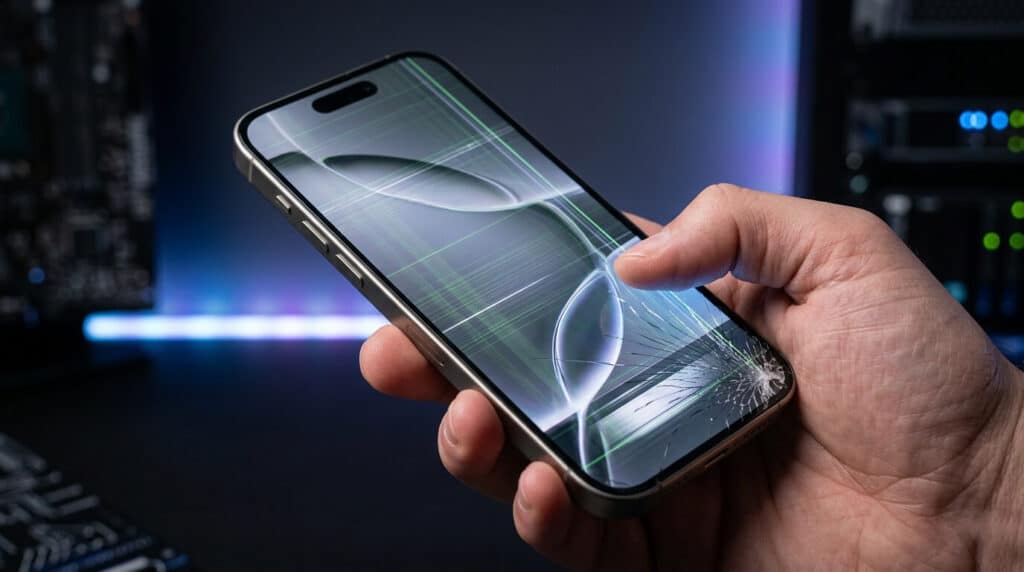
If your iPhone screen starts flickering, flashing green or white, or changing brightness unpredictably, you’re not alone. This common issue can appear after a drop, an iOS update, or seemingly out of nowhere.
In this guide, you’ll learn the main causes of iPhone screen flickering—software glitches and hardware problems—along with practical fixes you can try at home. We’ll cover when it’s safe to keep using the device and when it’s time to visit a repair shop in Ocala, Florida.
Definition Box: Screen Flickering
Screen flickering is a visual display issue where the screen flashes, dims, or changes brightness rapidly due to software bugs or hardware problems. It can range from mild brightness fluctuations to constant flashing that makes the phone difficult to use.
Quick Answer – Why Is My iPhone Screen Flickering?
iPhone screen flickering usually happens due to software bugs, damaged display hardware, or unstable iOS updates. It can also occur with weak battery power, app conflicts, or overheating. Identifying whether the issue is software or hardware is the first step toward fixing it.
Top causes include recent iOS updates, physical damage (even without visible cracks), display settings like Auto-Brightness, and OLED-specific behaviors at lower brightness levels.
What Causes iPhone Screen Flickering?
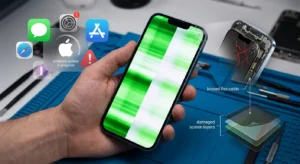
iPhone screen flickering stems from two main categories: temporary software issues and more permanent hardware problems. Temporary issues often resolve with restarts or updates, while hardware problems typically need professional attention.
Software-related flickering is more common after major iOS releases and tends to affect multiple users similarly. Hardware issues, such as loose connectors or damaged panels, usually worsen over time and may appear after drops or pressure on the device.
Software Issues That Cause Flickering
Yes, iOS updates can cause screen flickering. New updates sometimes introduce temporary display bugs that lead to brightness changes, flashing, or instability.
Common software triggers:
- iOS bugs and updates: Glitches after installing a new version.
- App conflicts: Certain third-party apps interfere with display rendering.
- Display settings: Auto-Brightness, True Tone, or High Refresh Rate (ProMotion on supported models) are causing fluctuations.
- Overheating or low battery: Unstable power delivery affects the screen.
In many cases, disabling Auto-Brightness or closing resource-heavy apps provides quick relief.
Hardware Issues Behind Screen Flickering
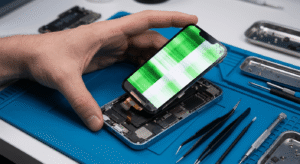
If flickering continues after restarts and updates, it usually indicates hardware damage. This includes a faulty display panel, loose connectors, or internal damage from drops or water exposure.
Warning signs of hardware problems:
- Flickering worsens over time or under specific conditions (e.g., while charging or at certain angles).
- Visible cracks, even minor ones, or a history of drops.
- Green/white lines or ghost touch accompany the flicker.
- Issues persist in Safe Mode or after a full restore.
These overlap with several other signs it may be time for a screen replacement.
OLED vs. LCD behavior: Newer iPhones with OLED displays (iPhone 12 and later, excluding some SE models) can show PWM-related flickering noticeable to sensitive users at lower brightness. Older LCD models (like iPhone 11) use different dimming and are less prone to this specific effect.
How to Fix iPhone Screen Flickering (Step-by-Step)
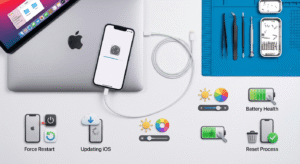
Start with a force restart, then update iOS. If the issue continues, reset settings or restore the device. Persistent flickering may require professional repair or screen replacement.
Follow these steps in order:
- Force Restart Your iPhone — Quickly press and release volume up, then volume down, and hold the side button until the Apple logo appears. This clears temporary glitches without data loss.
- Update iOS — Go to Settings > General > Software Update. Install any available updates, as they often include display fixes.
- Adjust Display Settings — Turn off Auto-Brightness (Settings > Accessibility > Display & Text Size) and True Tone. Test different brightness levels.
- Close Problem Apps or Uninstall — Swipe up from the bottom (or double-click Home button) to close apps. Remove recently installed ones if the issue started after downloading them.
- Reset All Settings — Settings > General > Transfer or Reset iPhone > Reset > Reset All Settings. This won’t delete data but restores defaults.
- DFU Restore (Advanced) — Use a computer with Finder or iTunes for a deeper restore if needed. Back up first.
- Check Battery Health — Settings > Battery > Battery Health. A poor battery can contribute to instability.
These steps resolve most software-related cases.
When You Should Visit a Repair Shop in Ocala, Florida
Take your iPhone to a professional if flickering persists after software fixes, especially with signs of physical damage or if the phone has been dropped or exposed to moisture.
Local option in Ocala:
Phone Fashion Paddock Market
3100 SW College Rd, Ocala, FL 34474 (Suites 5 & 6)
Phone: +1 (352) 300-9764
Email: Phonefashionpaddockmarket@gmail.com
They can perform diagnostics, screen replacements, and other repairs using quality parts. Always ask about warranty on repairs and whether they service your specific iPhone model. Most screen replacements, including diagnostics, are completed the same day.
Decision checklist:
- The issue started after a drop or impact.
- Flickering is constant or worsening.
- Accompanied by lines, touch problems, or dead zones.
- Software fixes failed after a full restore.
iPhone Models Most Affected by Screen Flickering
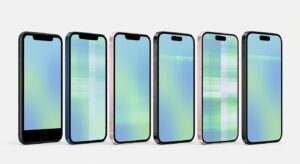
Certain models see this issue more often:
- OLED models (iPhone 12–16 series): Prone to PWM flickering and post-update glitches.
- iPhone 14 Pro / Pro Max: Reports of glitching even without drops.
- Older models like iPhone 11: Less PWM sensitivity, but still vulnerable to hardware wear.
LCD models generally show different (often less noticeable) flickering patterns than OLED.
Prevention Tips to Avoid Screen Flickering
- Keep iOS updated, but wait a few days after major releases for bug-fix patches.
- Use a good case and screen protector to cushion against drops.
- Monitor battery health and avoid extreme temperatures.
- Manage storage and close unused apps to reduce strain.
- Disable unnecessary display features like Always-On Display when not needed.
Regular maintenance helps maintain display stability.
Table: Causes vs Solutions for iPhone Screen Flickering
| Cause Type | Example | Fix |
| Software bug | iOS update glitch | Update or reset iOS |
| App conflict | Third-party apps | Uninstall or close the app |
| Hardware damage | Drop impact | Screen replacement |
| Battery issue | Low battery health | Battery replacement/service |
| Display settings | Auto-Brightness/True Tone | Disable in Accessibility |
Common Mistakes to Avoid
- Ignoring early signs: Flickering can worsen and lead to complete display failure. Address it promptly.
- Skipping backups before restores: Always back up via iCloud or computer first.
- Using non-genuine parts: Third-party screens can cause recurring issues or compatibility problems.
- Delaying professional help for suspected hardware damage: Software fixes won’t resolve physical connector or panel failures.
FAQ Section
Why does my iPhone screen flicker randomly?
Software or hardware instability. Often caused by iOS bugs, display damage, or power fluctuations. Test with software fixes first.
Can a low battery cause screen flickering?
Yes, an unstable power supply from a degraded battery can trigger display fluctuations. Check Battery Health in Settings.
Is screen flickering fixable without repair?
Yes, if software-related. Hardware issues require professional screen or component replacement. Repair costs vary depending on your iPhone model and screen type.
Does resetting the iPhone fix flickering?
Often yes, especially for software glitches. Try Reset All Settings before a full erase.
Should I ignore a flickering screen?
No, it can worsen over time and indicate deeper hardware issues. Early action prevents bigger problems.
Can iOS updates cause screen flickering?
Yes, new iOS updates sometimes introduce temporary display bugs. These can cause brightness changes, flickering, or screen flashing. Updating again or resetting settings often fixes the issue.
Is a flickering iPhone screen a hardware problem?
If flickering continues after restarting and updating, it usually indicates hardware damage. This includes a faulty display panel, loose connectors, or internal damage from drops or water exposure.
How do I fix iPhone screen flickering quickly?
Start with a force restart, then update iOS. If the issue continues, reset settings or restore the device. Persistent flickering may require professional repair or screen replacement.
Conclusion
iPhone screen flickering is often fixable with simple software steps, but persistent cases usually point to hardware that benefits from professional repair. Start with the easy fixes, back up your data, and escalate if needed.
Practical takeaways:
- Software causes are common and reversible.
- Hardware damage requires prompt attention to prevent further issues.
- Know your model’s display type for better diagnosis.
If you’re in the Ocala area and the problem continues, consider reaching out to a local repair shop such as Phone Fashion Paddock Market at 3100 SW College Rd for reliable service.