

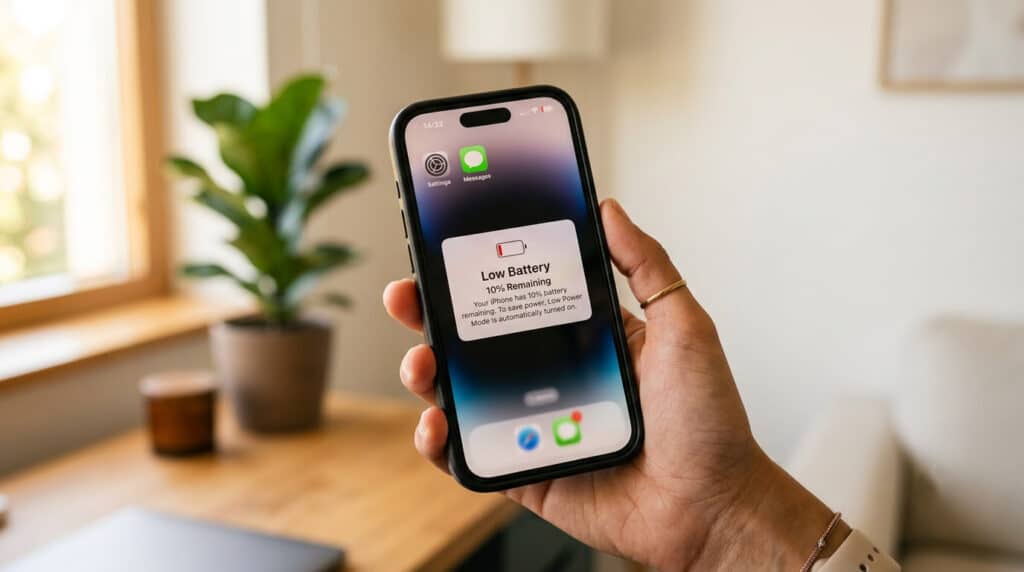
Few things are more frustrating than watching your iPhone battery percentage go down before the day is done. Whether your phone started draining fast overnight, right after an iOS update, or seemingly out of nowhere, the cause is almost always identifiable — and fixable. One of the most common issues we see nowadays, especially after an iOS update, is “iPhone Battery Draining Fast”.
This guide covers the five most common reasons iPhone batteries drain fast and exactly what to do about each one. As a phone repair shop in Ocala, we diagnose this issue every day, so the guidance here reflects what we actually see in the shop, not just generic tips. If you’re already past the point of software fixes and wondering whether your battery needs replacing, there’s a decision guide for that, too.
What Causes an iPhone Battery to Drain Fast?
Quick Answer: iPhone batteries drain fast due to five main causes: a recent iOS update triggering background re-indexing, battery aging past its 80% health threshold, apps running unchecked in the background, connectivity features like Location Services and Bluetooth staying active, and screen or display settings consuming more power than necessary.
The five primary causes, ranked by how often technicians encounter them:
- Recent iOS update — The most common trigger for sudden, unexpected drain. Post-update processes run in the background for 24–72 hours and can significantly increase power consumption.
- Battery aging — Once a battery’s maximum capacity drops below 80%, it struggles to hold a full charge and drains noticeably faster.
- Background apps and settings — Background App Refresh, Location Services, push notifications, and Bluetooth can all run silently and continuously.
- Connectivity features — Cellular data, 5G, and certain Always-On settings pull power even when the phone isn’t actively in use.
- Screen and display settings — High brightness, ProMotion 120Hz refresh rates, and Always-On Display (on supported models) all contribute to faster drain.
Most cases involve more than one of these working together. The sections below address each one with specific fixes.
Did a Recent iOS Update Cause Your Battery Drain?
Quick Answer: iPhone battery drain after an iOS update is often temporary. Following an update, iOS performs background tasks like re-indexing Spotlight search and re-optimizing photos, which typically cause elevated drain for 24–72 hours. If heavy drain continues beyond that window, it may indicate a software bug requiring a Reset All Settings or a call to Apple Support.
When iOS updates, the phone doesn’t just swap in new software and call it done. In the background, it re-indexes Spotlight search, re-processes the photo library, and syncs iCloud data — all of which pull power continuously. This is normal behavior, and it usually settles within one to three days.
The mistake most people make is panicking during this window and running through every battery tip they can find, which adds more activity and makes the drain look worse. In practice, the best first step is to plug the phone in overnight and let the background work finish on its own.
When it’s more than normal recalibration:
If the drain is still severe after 72 hours, or if the phone is running hot with nothing open, that’s a signal the update may have introduced a software bug. Known iOS versions have occasionally shipped with battery-related issues — iOS 18.x had reported drain problems for some devices before patch releases addressed them.
In that case, try these steps in order:
- Force restart the iPhone (hold Side + Volume Down until the Apple logo appears)
- Reset All Settings (Settings → General → Transfer or Reset iPhone → Reset → Reset All Settings) — this clears configuration conflicts without deleting data
- Check Apple’s System Status page or search “[iOS version] battery drain bug” to see if the issue is widely reported and whether a patch is available
Downgrading iOS is not straightforward, and Apple typically stops signing older versions quickly, so it’s rarely a practical option.
Is Your iPhone Battery Health the Real Problem?
Battery health, shown in Settings as Maximum Capacity, is the percentage of your iPhone’s current battery capacity relative to when it was new. A reading of 100% means the battery is at its full original capacity. At 80%, it can hold only 80% of its original charge. According to Apple’s support documentation, a battery below 80% is considered chemically aged.
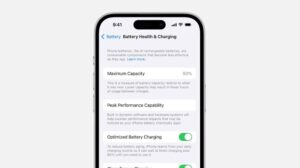
Quick Answer: Apple considers iPhone battery health below 80% maximum capacity to be degraded. At this threshold, the battery can no longer hold a full charge reliably, which causes faster drain and may trigger iOS performance management. Most repair technicians recommend battery replacement once the health drops below 80% to restore normal battery life.
How to check your battery health:
Go to Settings → Battery → Battery Health & Charging. The percentage shown next to “Maximum Capacity” is the key number.
What the “Peak Performance Capability” message means:
If you see a message about “performance management” being applied, iOS has detected that your battery can no longer deliver peak power without risking unexpected shutdowns. The phone throttles performance to compensate. This is iOS protecting the hardware — but it also means the battery is past its prime.
The charge cycle math most people don’t know:
iPhone batteries are rated for approximately 500 complete charge cycles before dropping to around 80% capacity, according to Apple’s battery documentation. A full charge cycle means using 100% of the battery’s capacity, even across multiple partial charges. At an average of one full cycle per day, that works out to roughly two years before the battery shows meaningful degradation. A phone that’s three or four years old is almost certainly operating with a degraded battery, regardless of how carefully it was charged.
One thing worth noting: battery health percentages don’t tell the whole story. A phone at 83% health that still shuts down unexpectedly likely has a battery with inconsistent cells — the percentage reflects average capacity, not worst-case delivery.
Background Apps and Settings Silently Draining Your Battery
Quick Answer: Background App Refresh allows apps to update their content while you’re not actively using them. For non-essential apps — particularly social media, news, and email — disabling Background App Refresh can meaningfully reduce battery drain. Navigation apps, streaming apps, and social platforms are the three categories that most aggressively consume power in the background.
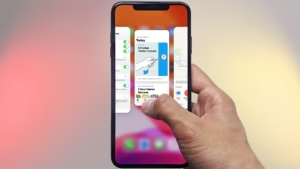
Background App Refresh is the feature that lets apps like Instagram, Google Maps, and Mail update their content before you open them. It’s convenient, but for most apps it’s unnecessary — and it keeps those apps doing work in the background continuously.
The three highest-drain app categories by type:
- Navigation apps (Google Maps, Waze) — GPS and radio usage together make these the worst offenders
- Streaming apps (YouTube, Netflix, Spotify) — buffering and audio processing continue even when minimized
- Social media apps (Instagram, TikTok, Facebook) — refresh constantly to load new content
To disable Background App Refresh selectively: Settings → General → Background App Refresh → turn off for apps that don’t need it.
Location Services is the other major silent drain. Apps set to “Always” access GPS continuously — even when you’re not using them. Go to Settings → Privacy & Security → Location Services and audit each app. Most apps work fine on “While Using” or “Never.” The only apps that genuinely need “Always” are navigation and fitness tracking apps.
Push Notifications have a hidden cost: every notification requires the phone to wake its radio and contact a server. High-notification apps quietly chip away at battery life over the course of a day.
A counterintuitive one: leaving Wi-Fi on actually saves battery compared to using cellular data. Wi-Fi radios consume less power than LTE or 5G. Turning off Wi-Fi to “save battery” does the opposite on most iPhones.
Raise to Wake and Auto-Lock are smaller contributors but add up over time. If your Auto-Lock is set to 5 minutes or Never, shortening it to 30 seconds or 1 minute reduces how often the screen is on without you noticing.
Screen and Display Settings That Waste Battery
Quick Answer: Dark mode saves battery life only on iPhones with OLED displays — iPhone X and later. OLED screens turn off individual pixels when displaying black, which reduces power draw. On older iPhones with LCD displays, dark mode changes the color, but the backlight stays fully on, so there is no battery benefit.
Screen brightness is the most straightforward drain factor. The higher the brightness, the more power the display uses. Auto-Brightness (Settings → Accessibility → Display & Text Size → Auto-Brightness) adjusts based on ambient light and typically uses less power overall than manual brightness kept at a fixed high level.
Always-On Display — available on iPhone 14 Pro, 14 Pro Max, 15 Pro, and 15 Pro Max — keeps a dim version of the lock screen visible at all times. Many users don’t realize it’s enabled by default, and it contributes meaningfully to daily drain. To disable it: Settings → Display & Brightness → Always On Display → Off.
ProMotion 120Hz display — available on the same Pro models — refreshes the screen at up to 120 times per second for smoother scrolling. iOS automatically scales this down for static content, but apps that don’t support adaptive refresh run at 120Hz constantly. Dropping to 60Hz isn’t a direct setting on iPhones the way it is on some Android devices, but disabling ProMotion can be approximated through Accessibility settings on some models.
The OLED dark mode distinction most articles skip: On OLED displays (iPhone X and every model released after it), black pixels are literally off. Dark mode works because the display is using fewer active pixels. On older LCD-based iPhones — anything before the iPhone X — the backlight stays on at full intensity regardless of what color is displayed. Dark mode on an LCD iPhone changes the appearance but does nothing for battery life.
Why Is My iPhone Battery Draining Overnight or When Not in Use?
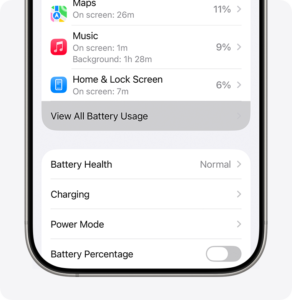
Quick Answer: iPhone battery draining overnight is most commonly caused by iCloud sync, push email, Background App Refresh, and Find My running continuously while the screen is off. The fastest way to identify which service is responsible is to go to Settings → Battery → Battery Usage by App and check which apps show high usage with little or no screen time.
Most overnight drain is network-driven — services reaching out to servers, syncing data, or checking for updates. The phone’s screen is off, but its radios aren’t.

The most common overnight culprits:
- iCloud sync — Photos, backups, and iCloud Drive sync in the background, especially overnight when Apple schedules them
- Push email — Every email account set to “Push” contacts the mail server in real time; accounts set to “Fetch” only check on a schedule
- Background App Refresh — As covered above, apps update content even when the screen is off
- Find My — Continuously uses Bluetooth and location to broadcast the phone’s position to Apple’s network
- Apple Watch pairing — A paired Apple Watch maintains a constant Bluetooth connection to the iPhone. If the Watch is on the nightstand beside the phone, it’s still syncing health data, notifications, and app updates through the night.
A fast diagnostic most guides don’t mention: Before changing any settings, enable Airplane Mode before bed and check the battery level in the morning. If the drain drops dramatically, the cause is network-related — one of the services above. If the phone still drains significantly with Airplane Mode on, the issue is more likely a rogue background process or a hardware problem.
How to identify the specific app: Settings → Battery → Battery Usage by App shows consumption over the last 24 hours and last 10 days. Look for any app showing significant battery usage alongside minimal or zero screen time — that’s a background process running more than it should.
Should You Replace Your iPhone Battery? (Decision Guide)
Quick Answer: Battery replacement is the right choice when iPhone battery health is below 80%, and the phone is otherwise in good condition. Phone replacement makes more sense when the device is four or more years old, has multiple hardware issues, or when the repair cost exceeds 50% of the phone’s current resale value.
The primary threshold: 80% maximum capacity
Once battery health drops below 80%, software fixes stop being enough. The battery physically cannot hold the charge it once could, and no setting change addresses that. At this point, replacement is the correct solution.
Signs that go beyond the percentage:
- Unexpected shutdowns — The phone turns off at 20%, 30%, or higher, with no warning
- Slow performance — iOS has applied performance management to prevent shutdowns, throttling the processor
- Swollen battery — A phone with a visibly raised back or a screen that’s slightly separated from the body may have a swollen battery. This is a safety issue, not just a performance one. A swollen lithium battery can rupture or catch fire. If your phone’s back is bulging, stop using it and bring it to a repair shop immediately.
Cost comparison:
| Option | Typical Cost | Notes |
| Apple OEM replacement | $89–$99 (out of warranty) | Genuine Apple part, Apple-certified |
| Local repair shop | $49–$79 typically | Quality varies; ask if they use OEM or aftermarket cells |
| DIY replacement | $20–$40 for parts | High risk of damage; voids any remaining warranty |
When to replace the phone instead of the battery:
If the phone is four years old or more, has screen damage, a failing camera, or other hardware issues, battery replacement may not be worthwhile. A useful rule: if the repair cost exceeds 50% of what you could sell the phone for, the money is better applied toward an upgrade.
For Ocala residents, Phone Fashion Fix offers same-day iPhone battery replacement — no appointment needed. We use quality replacement cells and test every battery before the phone leaves the shop.
| Factor | Replace Battery | Replace Phone |
| Battery health | Below 80% | Already replaced, still draining |
| Phone age | Under 4 years | 4+ years old |
| Performance | Slow but functional | Multiple hardware issues |
| Repair cost vs. resale value | Less than 50% of value | More than 50% of the value |
| Other damage | None | Screen, camera, or other issues |
Step-by-Step: How to Stop Your iPhone Battery from Draining Fast
Quick Answer: To stop the iPhone battery from draining fast, start with a diagnosis before making any changes: check battery health in Settings → Battery → Battery Health & Charging, then review Battery Usage by App to identify what’s consuming power. Follow with settings fixes — disabling Background App Refresh and restricting Location Services — and replace the battery if health is below 80%.
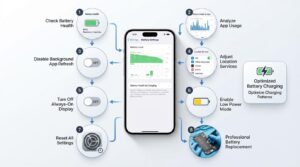
Most guides skip straight to the tips. In practice, the right order is: diagnose first, then fix. Making changes without knowing the cause wastes time and sometimes makes things harder to track.
Follow these steps in order:
Step 1 — Check Battery Health (30 seconds)
Settings → Battery → Battery Health & Charging. Note the percentage. If it’s below 80%, skip to Step 8.
Step 2 — Check Battery Usage by App
Settings → Battery → scroll down to see usage for the last 24 hours and last 10 days. Identify any apps using high battery with low screen time — these are background offenders.
Step 3 — Disable Background App Refresh for non-essential apps
Settings → General → Background App Refresh. Turn off social media, news, and any app that doesn’t need live updates.
Step 4 — Restrict Location Services to “While Using”
Settings → Privacy & Security → Location Services. Change any app set to “Always” to “While Using” unless it genuinely requires constant location access (navigation, health tracking).
Step 5 — Turn off Always-On Display (if applicable)
Settings → Display & Brightness → Always On Display → Off. Only relevant for iPhone 14 Pro and 15 Pro models.
Step 6 — Enable Low Power Mode temporarily
Settings → Battery → Low Power Mode. This reduces background activity, lowers display brightness, and pauses non-essential processes. It’s a short-term tool, not a permanent fix — but it buys time while you investigate.
Step 7 — Reset All Settings (last software step)
Settings → General → Transfer or Reset iPhone → Reset → Reset All Settings. This clears configuration conflicts that can develop over time, especially after iOS updates. It does not delete photos, apps, or data — only settings like Wi-Fi passwords and display preferences.
Step 8 — Replace the battery
If health is below 80%, or if Steps 1–7 don’t produce meaningful improvement, a battery replacement is the correct next step. No software fix compensates for a battery that can no longer hold its rated charge.
Optimized Battery Charging
(Settings → Battery → Battery Health & Charging → Optimized Battery Charging) is worth keeping on regardless. iOS learns your charging habits and avoids holding the battery at 100% for extended periods, which slows long-term degradation.
FAQs About iPhone Battery Drain
Why is my iPhone battery draining fast all of a sudden?
Sudden iPhone battery drain is most often caused by a recent iOS update, a newly installed app running in the background, or battery health that has dropped below 80% and triggered iOS performance management. Check Settings → Battery → Battery Usage by App to identify unusual activity, and check battery health to rule out hardware degradation. If a new app is responsible, it will typically appear at the top of the usage list with high background activity.
Does Low Power Mode actually help iPhone battery life?
Yes — Low Power Mode reduces several battery-consuming processes at once: it limits Background App Refresh, switches email to manual fetch, reduces display brightness and lock timeout, and pauses some visual effects. On most iPhones, it can extend remaining battery life by one to three hours. It’s a useful short-term tool, but it doesn’t fix the underlying cause of the drain. If you need Low Power Mode every day just to reach the end of the day, the battery likely needs replacement.
How do I check which apps are draining my iPhone battery?
Go to Settings → Battery and scroll down past the toggle options. You’ll see a list of apps with battery usage percentages for the last 24 hours and the last 10 days. Tap the clock icon to toggle between time views. An app showing high battery usage alongside minimal screen time is running heavily in the background — that’s the one to investigate first.
Why is my iPhone battery draining fast even after I replaced it?
Battery replacement resolves hardware-related drain, but it doesn’t fix software-driven issues. If a new battery is draining as fast as the old one, the cause is likely a rogue background app, a misconfigured setting, or an iOS bug. Run through Steps 2–7 in the step-by-step section above. If Reset All Settings doesn’t help, a full iPhone restore via iTunes or Finder is the next diagnostic step. In rare cases, a faulty replacement battery may also be the cause — worth ruling out with the repair shop that did the work.
How long should an iPhone battery last on a full charge?
A healthy iPhone battery — above 80% maximum capacity — should last a full day with moderate use. Depending on the model and usage, that typically means 10 to 17 hours of screen-on time. Older models will land at the lower end of that range. If your battery is dying in five to six hours with normal use, something is pulling more power than it should, or the battery has degraded enough that replacement is warranted.
Conclusion
iPhone battery drain almost always has a specific, identifiable cause. The process of finding it takes less time than most people expect.
Three practical takeaways:
- Check battery health before anything else. If it’s below 80%, no setting change will fully solve the problem. Hardware degradation requires a hardware fix.
- Background App Refresh and Location Services are your two quickest wins. Disabling Background App Refresh for social and news apps, and switching most apps to “While Using” for location access, typically has a measurable effect within a day.
- Post-update drain is usually temporary. Give it 72 hours before taking action. Most of the time, it resolves on its own as iOS finishes its background processes.
Your next step depends on where your battery health stands:
If your health is above 80%, work through the step-by-step fix section above — start with the diagnosis steps, then the settings changes. Most cases resolve without needing a repair.
If your health is below 80%, or if you’re seeing unexpected shutdowns and sluggish performance, a battery replacement is the most efficient fix.
Phone Fashion Fix in Ocala offers same-day iPhone battery replacement with no appointment required. We’ve replaced hundreds of iPhone batteries across every model and can typically have your phone ready within the hour.