

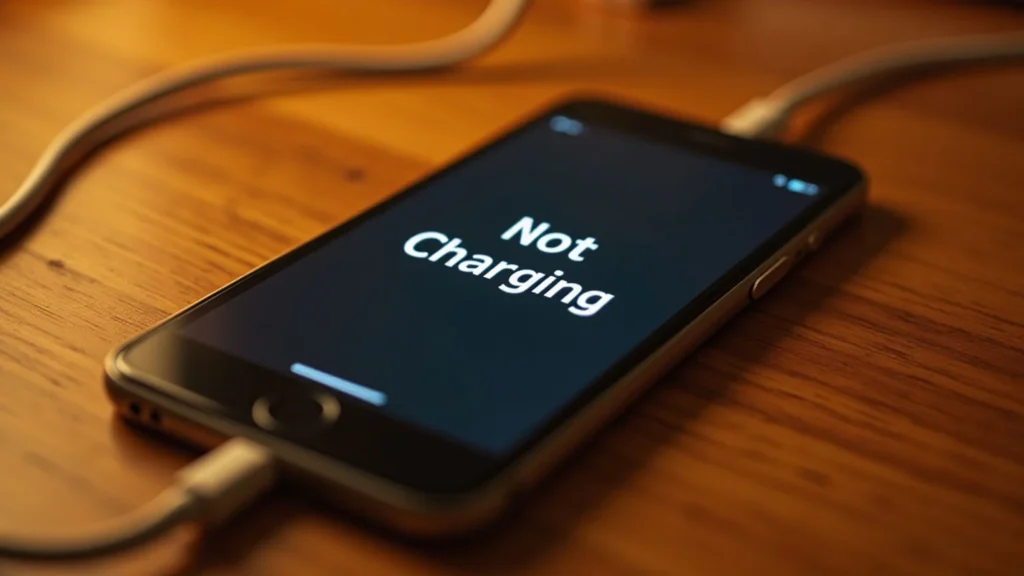
“Why won’t my iPhone charge?” is one of the most common questions people bring into a repair shop, and most of the time the fix is simpler than it looks. A few things commonly stop an iPhone from charging: a bad cable or adapter, a dirty or damaged charging port, a software glitch, or a battery that’s degraded past a useful point.
This guide walks through how to identify what’s actually wrong before you spend money on a new cable, a new battery, or a repair you don’t need. You’ll get symptoms first, then cause, then fix — the same order a technician would use on a bench.
Why Won’t My iPhone Charge?
An iPhone usually won’t charge because of a faulty cable or adapter, a dirty or damaged charging port, a software bug affecting the charging process, or a battery that has degraded enough to trigger power management limits. Hardware issues cause most sudden charging failures, while software issues tend to cause intermittent or slow charging instead of a complete stop.
iPhone Charging System — Definition: The iPhone charging system is the combination of hardware and software that manages how power moves from a charger into the battery. It includes the Lightning or USB-C port, the charging cable and adapter, the battery management chip, and iOS software that regulates charging speed, temperature, and long-term battery health.
Four categories are typically responsible: hardware (cable, adapter, port), software (iOS bugs or settings), accessories (non-MFi or worn-out cables), and battery health (a cell that can no longer hold or accept a full charge safely). Ruling these out in order, from cheapest to check to most expensive to fix, saves time and money.
In most cases, an iPhone fails to charge because the connection between the cable and port is interrupted — either by debris in the port, a worn-out cable, or a loose connection. When the port and cable are confirmed working, the next most common cause is a battery that has degraded to the point where it can no longer accept a stable charge.
Symptoms Checker — Identify Your Charging Problem First
Before assuming the worst, match your symptom to the pattern below. Different symptoms point to different root causes, and diagnosing by symptom first is faster than guessing by cause.
Different charging symptoms point to different causes: no charging icon usually means a connection problem, slow charging often means a weak adapter or cable, charging that stops randomly points to a loose port or overheating, and a device stuck at 80% usually means Optimized Battery Charging is active rather than a fault.
No charging icon
The phone shows nothing at all when plugged in. This almost always means the connection between cable and port isn’t making contact — check the cable and port before anything else.
Charges very slowly
The percentage climbs, but far slower than expected. A common issue is using a low-wattage adapter or a damaged cable that can’t deliver full current.
Stops charging randomly
The phone starts charging, then disconnects on its own. This typically happens when the port has debris pressing against the connector, or when the phone overheats and pauses charging as a safety measure.
Stuck at 80%
This is frequently mistaken for a fault. In most cases, it’s Optimized Battery Charging — an iOS feature that intentionally slows the final 20% to reduce long-term battery wear.
Gets hot while charging
Some warmth is normal. Excessive heat combined with slow or stopped charging can indicate a battery nearing the end of its usable life, or a faulty charging accessory.
“Liquid Detected” warning
iOS disables charging through the Lightning or USB-C port when moisture is detected, to prevent corrosion damage. This is a protective measure, not a permanent fault, but it shouldn’t be ignored.
| Symptom | Possible Cause | Recommended Fix |
| No charging icon | Loose or damaged cable, dirty port | Try another cable, inspect and clean the port |
| Charges very slowly | Low-wattage adapter, worn cable | Use an MFi-certified cable and 20W+ adapter |
| Stops charging randomly | Port debris, overheating | Clean port, let device cool, avoid charging in direct sun |
| Stuck at 80% | Optimized Battery Charging (normal) | No fix needed, or disable the feature in Settings |
| Gets hot while charging | Battery degradation, faulty adapter | Check Battery Health, test a different adapter |
| “Liquid Detected” warning | Moisture in the port | Dry the port fully, avoid charging until warning clears |
Common Reasons Your iPhone Won’t Charge
The most common reasons an iPhone won’t charge are a faulty charger or adapter, a damaged Lightning or USB-C cable, a dirty charging port, an iOS software bug, degraded battery health, water damage, overheating, or in rarer cases a failed charging IC on the logic board. Each interrupts a different point in the charging chain.
Charging depends on a chain: cable → port → charging IC → battery. A break anywhere in that chain stops the process, which is why the same symptom can have several different causes.
Faulty Charger or Adapter
Adapters wear out or can silently deliver less power than rated. If a cable works fine on one adapter but not another, the adapter itself is the fault, not the phone.
Damaged Cable
Cable damage often hides inside the connector or near the strain relief, invisible from the outside. In practice, cables fail from bending, not from age alone — checking for cracks or exposed wire near the connector usually reveals the issue.
Dirty Charging Port
Lint, dust, and pocket debris build up inside the port over time and physically block the pins from making contact with the cable. This is one of the most frequent causes technicians see, and one of the easiest to fix.
Software Bug
An iOS bug can misreport charging status or interfere with the charging algorithm, especially after a failed or interrupted update. This typically shows up as charging that starts and stops without a clear physical cause.
Battery Health
As batteries chemically age, they lose their ability to accept and hold a full charge safely. According to Apple’s support documentation, batteries are considered consumable components that naturally degrade with charge cycles over time.
Water Damage
Even brief exposure to moisture can trigger corrosion inside the port or trip the liquid-detection system, which deliberately disables charging until the moisture clears.
Overheating
iOS intentionally pauses or slows charging when internal temperature rises too high, both to protect the battery and to prevent damage to internal components.
Charging IC Failure
The charging IC is the chip that regulates power flow from the port to the battery. When it fails, the phone typically won’t charge on any cable, any adapter, or wirelessly — this is one of the few charging issues that requires professional repair rather than a home fix.
Step-by-Step Troubleshooting Guide
To fix an iPhone that won’t charge, start with the simplest checks first: try a different cable and adapter, inspect and clean the charging port, force restart the device, update iOS, then check Battery Health. Working from easiest to most advanced rules out simple causes before assuming a hardware failure.
Work through these in order. Each step is quick, and most charging problems resolve within the first three.
- Try another charger. Swap both the cable and the adapter if possible — testing one at a time isolates which part is actually failing.
- Inspect the cable. Look closely at the connector ends for bent pins, fraying, or exposed wire.
- Check the adapter. Test it on a different device or a different cable to confirm it’s delivering power.
- Clean the charging port. Use a soft, dry, non-conductive tool — a wooden toothpick or anti-static brush works well. Never use anything metal or sharp, since that can bend the pins and cause a bigger problem.
- Force restart the device. This clears temporary software states without deleting anything. One mistake people often make is skipping this step because it seems too simple — it resolves a surprising number of software-related charging stalls.
- Update iOS. Apple regularly ships fixes for charging-related bugs in point releases, so confirm the device is on the latest available version.
- Check Battery Health. Go to Settings → Battery → Battery Health & Charging to see the maximum capacity percentage.
- Test wireless charging. If MagSafe or Qi charging works but cable charging doesn’t, the problem is almost certainly the port or cable, not the battery.
- Reset all settings. As a last software step before assuming hardware failure, this clears misconfigured settings without erasing personal data.
Charging Problem Decision Tree
To diagnose an iPhone charging problem quickly: if there’s no charging icon, try a different cable first, then a different adapter, then force restart, then check Battery Health, and if none of those resolve it, the device likely needs professional repair.
No charging icon?
↓
Try a different cable
↓
Still nothing? Try a different adapter
↓
Still nothing? Force restart the device
↓
Still nothing? Check Battery Health
↓
Health low or no change? Professional repair needed
This flow is intentionally ordered from free to costly. Most people never need to reach the final step, but knowing where it leads helps set expectations if the earlier steps don’t resolve the issue.
When Should You Repair Your iPhone?
An iPhone should go in for professional repair when the charging port shows physical damage, Battery Health drops below roughly 80%, the device shows signs of past water exposure, or the phone still won’t charge on any cable, adapter, or wireless charger after basic troubleshooting. At that point, the issue is almost always hardware, not something fixable through settings.
Not every charging issue needs a shop visit, but some do. The table below separates what’s reasonable to try at home from what’s worth having a technician handle.
| Problem | DIY | Professional Repair |
| Dirty port | Yes — gentle cleaning with a non-metal tool | Only if cleaning doesn’t resolve it |
| Worn cable/adapter | Yes — replace with an MFi-certified accessory | Not applicable |
| Low Battery Health (below ~80%) | No | Yes — battery replacement |
| Bent or damaged port pins | No | Yes — port repair |
| Water damage | No | Yes — diagnostic and cleaning |
| No charging on any accessory | No | Yes — likely charging IC or logic board issue |
Repair costs vary by device model and the specific component involved, so getting a diagnostic first is worth it before assuming the most expensive outcome. A shop that offers a free or low-cost diagnostic — like Phone Fashion Fix near Paddock Mall in Ocala — can usually tell within minutes whether the fix is a $20 port cleaning or a battery replacement.
Prevent Future Charging Problems
To prevent iPhone charging problems, use MFi-certified cables and adapters, avoid charging in direct heat or under a pillow, keep the charging port free of lint and debris, keep iOS updated, avoid sharply bending cables near the connector, and check Battery Health periodically to catch degradation early.
- Use MFi-certified accessories. Uncertified cables and adapters are a leading cause of slow charging and long-term port wear.
- Avoid charging in heat. Direct sunlight, under a pillow, or inside a closed car all raise internal temperature and can trigger protective charging slowdowns.
- Keep the port clean. A quick monthly check with a flashlight catches lint buildup before it becomes a connection problem.
- Update iOS regularly. Charging-related bug fixes ship in minor updates more often than most people expect.
- Don’t bend cables at the connector. This is where internal wire damage happens first, well before it’s visible from outside.
- Monitor Battery Health. Checking it every few months gives an early warning before a battery becomes a charging problem rather than just a battery life problem.
Common Charging Myths
Common iPhone charging myths — that fast charging always damages the battery, that overnight charging ruins it, that only Apple-brand chargers work, and that closing background apps improves charging speed — are largely false. Modern iPhones manage charging speed and battery protection automatically regardless of these behaviors.
| Myth | Fact |
| Fast charging damages the battery | iPhones regulate charging speed automatically and reduce it as the battery approaches full, limiting heat and wear |
| Overnight charging ruins the battery | Optimized Battery Charging slows the final charge percentage automatically to reduce wear from prolonged high charge |
| Only Apple chargers work | Any MFi-certified cable and compatible adapter charges an iPhone normally — the brand matters less than the certification |
| Closing background apps improves charging | Charging speed is managed by hardware and iOS power management, not by which apps are open |
According to Apple’s support documentation, Optimized Battery Charging is designed specifically to reduce the amount of time a device spends at full charge, which is the condition that accelerates battery aging — not the act of charging overnight itself.
Frequently Asked Questions
Why won’t my iPhone charge when plugged in?
The most common cause is a poor connection from a damaged cable, worn adapter, or debris in the port. If the phone charges wirelessly but not by cable, the port or cable is almost certainly the issue rather than the battery.
Why does my iPhone only charge when turned off?
This usually points to a battery that’s struggling to supply enough power to run the screen and system while also charging. It’s a common sign that Battery Health has dropped and a replacement may be needed soon.
Why won’t my iPhone charge past 80%?
In most cases, this is Optimized Battery Charging working as intended, not a fault. It can be checked and adjusted under Settings → Battery → Battery Health & Charging.
Can a dirty charging port stop charging?
Yes. Lint and debris physically block the pins inside the port from making contact with the cable, and this is one of the single most common charging complaints technicians see.
Why does my iPhone say “Liquid Detected”?
iOS disables charging through the port when its sensors detect moisture, to prevent corrosion. The warning clears on its own once the port is fully dry, which can take several hours.
Should I replace my battery or charging port?
It depends on the symptom. If wireless charging works but cable charging doesn’t, the port is the likely cause. If the phone struggles to hold a charge or shuts down at moderate battery percentages, the battery is the more likely cause — a diagnostic can confirm which before paying for either repair.
Conclusion
Most iPhone charging problems trace back to one of four causes: a cable or adapter issue, a dirty or damaged port, a software bug, or battery degradation. Working through symptoms first, then testing from the cheapest fix to the most involved, avoids paying for a repair you don’t actually need. When basic troubleshooting doesn’t resolve it, a professional diagnostic is the fastest way to know exactly what’s wrong — and what it will actually cost to fix.